-
Brandons-MassiveLoop-CSharp-Scripts
-
 .gitattributes
-
ChunkLoader.cs
-
DamageText.cs
-
DodgeBallGameManager.cs
-
DodgeballScript.cs
-
DynamicSize.cs
-
DynamicSize_Threshold.cs
-
EnemyAi.cs
-
EnemySpawner.cs
-
GameManager.cs
-
GunScript.cs
-
JukeBox.cs
-
Paddle.cs
-
Paddle2.cs
-
Paddle2AI.cs
-
Paddle3.cs
-
Paddle4.cs
-
Playerscript_Multiplayer.cs
-
Projectile.cs
-
README.md
-
ball.cs
Massive Loop Unity C# Brandon's Code Collection
Repo of Multiple projects in Unity C# for Massive Loop.
This is a small fun project made with the Massive Loop SDK for a Massive Loop game world!
Feel free to check it out at : https://home.massiveloop.com/ and our SDK is available for download at : https://massiveloop.com/download/sdk/
With documentation available at : https://docs.massiveloop.com/
We recently have allowed the usage of C# scripting which gives a lot of freedom to our creators. This is one of many fun projects that I've started in order to test out the limits of our new C# compiler. Also I think that creating a fun small Table Tennis game that could be played in VR & Multiplayer sounds pretty fun!
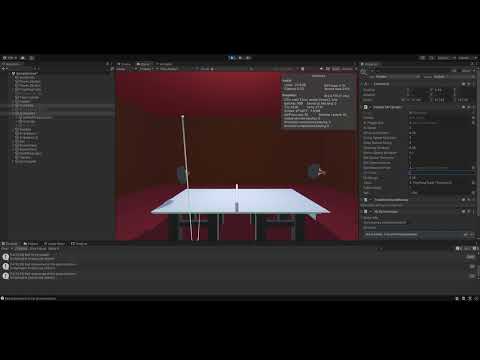
Initial AI video down below :
🎵 Jukebox Script for Unity
This script powers a fully interactive jukebox in Unity, complete with dynamic song playback, an audio visualizer, and user-friendly controls. Designed for projects that require immersive audio experiences, the Jukebox script integrates seamlessly into Unity's audio system and includes customizable features for enhanced functionality.
Key Features
- Audio Playback: Supports a playlist of audio clips with play, pause, skip forward, and skip backward functionality.
- Autoplay: Automatically plays the next song in the playlist when the current one finishes, with the ability to toggle autoplay on or off.
- Visualizer Integration: Generates dynamic visual effects synchronized with the audio spectrum data for an engaging visual experience.
- Volume Control: Provides adjustable volume settings with smooth transitions.
- Progress Bar: Displays the current playback time of the song via a slider that updates in real time.
- Customizable Buttons: Includes clickable buttons for all playback controls, with visual feedback to indicate states like pause/play and autoplay on/off.
- Song Title Display: Displays the name of the current song using Unity's TextMeshPro.
How It Works
- Attach the script to a GameObject in your Unity scene.
- Configure the
Songsarray with your desired audio clips. - Hook up the clickable buttons and visualizer GameObjects in the Unity Inspector.
- Enjoy an immersive jukebox experience with autoplay, real-time visualizer updates, and easy-to-use controls.
This script is ideal for interactive audio experiences in games, VR/AR environments, or any Unity-based application where music playback and visualization are required.
Dynamic Size and Throw Script for Unity (VR)
This script adds dynamic interactivity to VR objects using the MLGrab system, enabling realistic resizing and throwing mechanics. Perfect for VR projects requiring intuitive and immersive object manipulation.
Features
-
Primary Grab (One-Handed Interaction):
- Allows picking up objects and holding them in hand.
- Objects can be thrown with realistic impulse physics when released.
- Throw force is customizable and clamped to ensure consistent behavior.
-
Secondary Grab (Two-Handed Interaction):
- Enables resizing of objects based on the distance between hands.
- Size changes are dynamically applied in real-time while holding the object.
- Adjustable minimum and maximum scale limits for precise control.
-
Customizable Parameters:
minSizeandmaxSize: Relative scale limits for resizing.absoluteMinSizeandabsoluteMaxSize: Absolute size limits to prevent extreme scaling.throwForceMultiplier: Strength of the throwing force.maxThrowForce: Caps the maximum force applied during a throw.
-
Realistic Physics Integration:
- Dynamically calculates and applies force in the hand's forward direction on release.
- Ensures smooth and predictable interactions using Unity's Rigidbody system.
-
Event-Driven System:
- Custom event handling for triggering additional behaviors (e.g., network synchronization) when throwing objects.
How It Works
-
Primary Grab:
- When the object is grabbed, it follows the motion of the player’s hand.
- On release, a force is applied in the hand's forward direction, simulating a realistic throw.
-
Secondary Grab:
- When both hands grab the object, the script tracks the distance between them.
- The object's scale changes dynamically based on the hand distance, with customizable limits to prevent excessive resizing.
-
Physics Integration:
- A Rigidbody component ensures the object interacts naturally with the environment after release or resizing.
Usage
- Attach the script to an object with an MLGrab component.
- Assign the
objectToChangefield to the target GameObject. - Ensure the object has a Rigidbody component for physics interactions.
- Configure size and throw parameters in the Inspector for your specific use case.
Example Code Behavior
- When grabbing and releasing, the console logs the applied throw force for debugging:
Object thrown with impulse force: [force_vector]
DodgeBall Game Manager in Unity
Overview
The DodgeBallGameManager script manages a team-based dodgeball game in Unity. It controls player interactions, team assignments, game state management, teleportation, and scoring. This script uses MassiveLoop SDK for multiplayer support and TextMeshPro for UI updates.
Key Features
- Team Selection: Players are assigned to either the Blue or Red team.
- Game Start & End Management: Handles game activation, countdown timers, and results.
- Teleportation: Teleports players to the arena or back to spawn points.
- Scoring System: Keeps track of team scores and updates the UI.
- Ball Reset: Resets the game balls to their original position.
Dependencies
- MassiveLoop SDK: For multiplayer features (
MLPlayer,MLClickable, and network events). - TextMeshPro: For displaying team details, scores, and timers.
- UnityEngine.UI: Required for basic UI interaction.
Script Breakdown
Variables
| Type | Name | Description |
|---|---|---|
GameObject |
BlueTeleportObjectLocation | Blue team's teleport location. |
GameObject |
RedTeleportObjectLocation | Red team's teleport location. |
GameObject |
ResetBallPosition | Position to reset game balls. |
GameObject |
GameBall / GameBalls | The game ball(s) in the arena. |
ML.SDK.MLClickable |
taggersClickable / runnersClickable | Clickables for selecting teams. |
ML.SDK.MLClickable |
StartGameClickable | Clickable to start the game. |
TextMeshPro |
timeText | Displays the remaining time. |
TextMeshPro |
GameStatusText | Displays game status text. |
TextMeshPro |
BlueTeamString / RedTeamString | Displays team members. |
TextMeshPro |
BlueTeamScore / RedTeamScore | Displays team scores. |
Stopwatch |
stopwatch | Tracks elapsed game time. |
List<string> |
blueTeam / redTeam | Holds player names for each team. |
int |
blueTeamNumberScore / redTeamNumberScore | Tracks each team's score. |
bool |
isGameActive | Game state flag. |
Collider |
ArenaCollider | Arena collider for teleport checks. |
GameObject |
BlueCelebration / RedCelebration | Celebration effects for winning teams. |
Key Methods
1. OnStartGameEvent
    public void OnStartGameEvent(object[] args)
    {
        GameStatusText.text = "Game Active";
        GameStatusText.color = Color.green;

        isGameActive = true;
        stopwatch.Start();
        TeleportPlayersToArena();

        Tip.SetActive(true);

        BluePortal.SetActive(false);
        RedPortal.SetActive(false);

        BlueCelebration.SetActive(false);
        RedCelebration.SetActive(false);

        if (isGameActive == true)
        {
            taggersClickable.gameObject.SetActive(false);
            runnersClickable.gameObject.SetActive(false);

        }

    }
- Purpose: Activates the game, starts the timer, and teleports players into the arena.
- Actions: Updates game status text. Starts the stopwatch. Disables team-selection buttons. Hides portals and celebrations.
2. OnResetBallPosition
    public void OnResetBallPosition()
    {
        foreach( GameObject b in GameBalls)
        {
            b.transform.position = ResetBallPosition.transform.position;
        }
    }
- Purpose: Resets all game balls to their default position.
- Actions: Iterates through GameBalls and moves each ball to ResetBallPosition.
3. AssignTeam
    private void AssignTeam(MLPlayer player, string team)
    {
        string playerName = player.NickName;
        this.InvokeNetwork(EVENT_SELECT_TEAM, EventTarget.All, null, playerName, team);
        UpdateTeamLocally(playerName, team);
    }
- Purpose: Assigns a player to a team and synchronizes the assignment across the network.
- Actions: Updates player team property. Updates team lists (locally). Refreshes the team display UI.
4. TeleportPlayersToArena
    private void TeleportPlayersToArena()
    {
        MLPlayer localPlayer = MassiveLoopRoom.GetLocalPlayer();
        MLPlayer[] playersArray = MassiveLoopRoom.FindPlayersInCollider(ArenaCollider);


        // Check if the localPlayer has a valid "team" property
        if (localPlayer.GetProperty("team") != null)
        {
            // If the player is already in the arena, do nothing
            if (playersArray.Contains(localPlayer))
            {
                UnityEngine.Debug.Log("Local player is already in the arena, skipping teleport.");
                return;
            }

            UnityEngine.Debug.Log("Get Property on local player did not return null");
            string team = (string)localPlayer.GetProperty("team");
            if (team == "Red" && !playersArray.Contains(localPlayer))
            {
                UnityEngine.Debug.Log("Red team member found");
                localPlayer.Teleport(RedTeleportObjectLocation.transform.position);
            }
            else if (team == "Blue" && !playersArray.Contains(localPlayer))
            {
                UnityEngine.Debug.Log("Blue team member found");
                localPlayer.Teleport(BlueTeleportObjectLocation.transform.position);
            }
        }
    }
- Purpose: Teleports players to their respective team's teleportation position based on their assigned team.
- Actions: Checks player properties (team) and teleports them to RedTeleportObjectLocation or BlueTeleportObjectLocation.
5. UpdateTeamText
    private void UpdateTeamText()
    {
        BlueTeamString.text = $"Blue Team: \n {string.Join(", \n", blueTeam)}  \n";
        RedTeamString.text = $"Red Team: \n {string.Join(", \n", redTeam)}  \n";
    }
- Purpose: Updates the UI display for both teams.
- Actions: Combines team member names into formatted strings. Updates BlueTeamString and RedTeamString.
6. EndGame
    private void EndGame()
    {
        int blueTeamCount = blueTeam.Count;
        int redTeamCount = redTeam.Count;
        isGameActive = false;

        BluePortal.SetActive(true);
        RedPortal.SetActive(true);

        Tip.SetActive(false);

        if (blueTeamCount > redTeamCount)
        {
            GameStatusText.text = "Blue Team Wins!";
            GameStatusText.color = Color.cyan;
            BlueCelebration.SetActive(true);
            RedCelebration.SetActive(false);

            blueTeamNumberScore += 1;
            BlueTeamScore.text = blueTeamNumberScore.ToString();
        }
        else if (redTeamCount > blueTeamCount)
        {
            GameStatusText.text = "Red Team Wins!";
            GameStatusText.color = Color.red;
            BlueCelebration.SetActive(false);
            RedCelebration.SetActive(true);

            redTeamNumberScore += 1;
            RedTeamScore.text = redTeamNumberScore.ToString();

        }
        else
        {
            GameStatusText.text = "It's a Tie!";
            GameStatusText.color = new Color(255f / 255f, 97f / 255f, 0f / 255f, 1f); // RGBA

        }

        this.InvokeNetwork(EVENT_TELEPORT_PLAYERS_BACK_TO_SPAWN, EventTarget.All, null);
        ResetGame();
    }
- Purpose: Ends the game, calculates winners, and resets the state.
- Actions: Stops the stopwatch. Determines the winning team (or a tie). Activates celebration effects and updates scores. Teleports players back to spawn.
7. ResetGame
    private void ResetGame()
    {
        blueTeam.Clear();
        redTeam.Clear();
        UpdateTeamText();
        stopwatch.Reset();


        MLPlayer localPlayer = MassiveLoopRoom.GetLocalPlayer();
        localPlayer.SetProperty("team", "none");


        if (isGameActive == false)
        {
            taggersClickable.gameObject.SetActive(true);
            runnersClickable.gameObject.SetActive(true);
        }

    }
- Purpose: Fully resets the game state.
- Actions: Clears team lists. Resets scores, UI, and game state. Re-enables team selection clickables. Hides victory effects.
Usage Instructions
- Attach the DodgeBallGameManager script to an empty GameManager object in your Unity scene.
- Assign the required GameObjects, Clickables, and TextMeshPro fields in the inspector.
- Ensure the MassiveLoop SDK is installed for multiplayer functionality.
- Use taggersClickable and runnersClickable to allow players to choose their teams.
- Trigger OnStartGameEvent to start the game.
Networking Events in Massive Loop 101
The script utilizes MassiveLoop SDK networking events to synchronize actions across all clients.
Event Definitions
const string EVENT_SELECT_TEAM = "TeamSelectEvent";
const string EVENT_START_GAME = "EventStartGame";
const string EVENT_TELEPORT_PLAYERS_INTO_ARENA = "TeleportPlayersEvent";
const string EVENT_TELEPORT_PLAYERS_BACK_TO_SPAWN = "TeleportPlayersEvent_BackToSpawn";
These constants represent event names used for invoking and handling networking events.
Event Tokens
Event tokens register callbacks to specific network events:
tokenSelectTeam = this.AddEventHandler(EVENT_SELECT_TEAM, OnTeamSelectEvent);
tokenStartGame = this.AddEventHandler(EVENT_START_GAME, OnStartGameEvent);
tokenTeleportPlayers = this.AddEventHandler(EVENT_TELEPORT_PLAYERS_INTO_ARENA, OnTeleportPlayers);
tokenTeleportPlayers_backToSpawn = this.AddEventHandler(EVENT_TELEPORT_PLAYERS_BACK_TO_SPAWN, OnTeleportPlayersBackToSpawn);
Usually, it is best to include these in your start function, that way each network oriented event is available almost right away during run-time. The AddEventHandler registers methods like OnTeamSelectEvent to respond to specific events when they are invoked.
Example Usage
Take this code for example :
private void AssignTeam(MLPlayer player, string team)
{
    string playerName = player.NickName;
    this.InvokeNetwork(EVENT_SELECT_TEAM, EventTarget.All, null, playerName, team);
    UpdateTeamLocally(playerName, team);
}
Updating a player's team is something that we certainly want each client to see. Therefore, we call this.InvokeNetwork(EVENT_SELECT_TEAM, EventTarget.All, null, playerName, team);
Where the general structure of the invokeNetwork call first asks for the event name that we registered the callback to. EVENT_SELECT_TEAM
Then we set our target. EventTarget.All
Note that there are multiple options that are available to you here :
- Player - Targets a specific player in the game. The event is sent only to that player's client.
- OnlyThisClient - Targets only the local client where the method is called.
- Master - Targets the master client (or host), often the authoritative client in the network session.
- All - Targets all clients connected to the session, including the one that invoked the event.
- Others - Targets all clients except the one that invoked the event.
| EventTarget | Description | Example Use Case |
|---|---|---|
| Player | Targets a specific player | Sending player-specific updates |
| OnlyThisClient | Local client only | Local UI or HUD updates |
| Master | Master client (authoritative client) | Spawning, validation, centralized logic |
| All | All clients, including the sender | Global events, game start, animations |
| Others | All clients except the sender | Sync player movement, broadcast events |
Passing Variables with InvokeNetwork
When calling InvokeNetwork, you can pass variables as the third parameter, which will be accessible in the event handler:
this.InvokeNetwork(EVENT_TELEPORT_PLAYERS_INTO_ARENA, EventTarget.All, new object[] { variable1, variable2 });
Third Parameter: An object[] array containing any variables you want to pass. The variables can be accessed through the object[] args parameter.
// Sending the event with variables
this.InvokeNetwork(EVENT_TELEPORT_PLAYERS_INTO_ARENA, EventTarget.All, new object[] { "Arena1", 10 });

// Receiving the event
public void OnStartGameEvent(object[] args)
{
    string arenaName = (string)args[0];
    int playerCount = (int)args[1];

    Debug.Log($"Teleporting {playerCount} players to {arenaName}");
}