
Review Of Accessing APIs
Estimated time needed: 30 minutes
Objectives
After completing this lab, you will be able to:
- Understand HTTP
- Analyze HTTP Requests
Table of Contents
Overview of HTTP
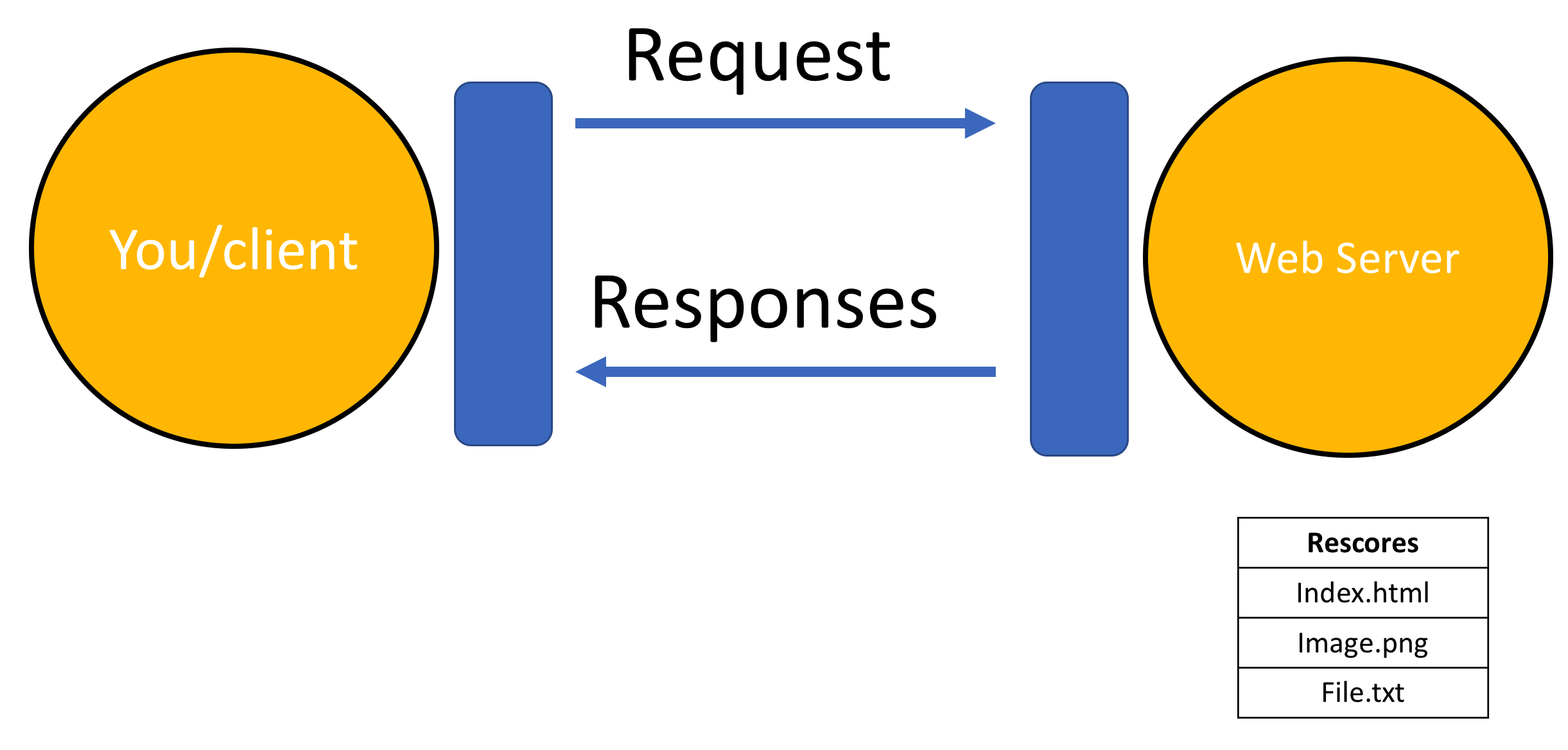
When you, the client, access a web page, your browser sends an HTTP request to the server where the page is hosted. The server tries to locate the desired resource by default "index.html". If your request is successful, the server will send the object to the client in an HTTP response, which includes information like the type of the resource, the length of the resource, and other information.
The figure below represents the process. The circle on the left represents the client, the circle on the right represents the web server. The table under the web server represents a list of resources stored in the web server. In this case an HTML file, png image, and txt file .
The HTTP protocol enables you to send and receive information through the web including webpages, images, and other web resources. In this lab, you will explore the Requests library for interacting with the HTTP protocol.
Uniform Resource Locator (URL)
Uniform resource locator (URL) is the common way to find resources on the web. A URL can be broken down into three main parts:
- Scheme: The protocol used, which in this lab will always be
http:// - Internet address or Base URL: Used to locate the resource. Examples include
www.ibm.comandwww.gitlab.com - Route: Location on the web server for example:
/images/IDSNlogo.png
You may also hear the term Uniform Resource Identifier (URI). URL are actually a subset of URIs. Another popular term is endpoint, which refers to the URL of an operation provided by a web server.
Request
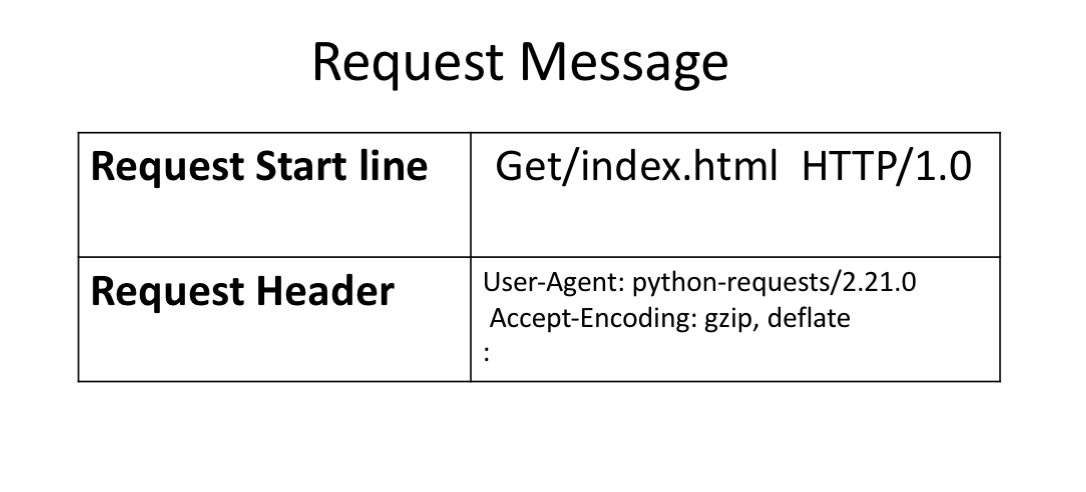
The process can be broken into the Request and Response process. The request using the get method is partially illustrated below. In the start line we have the GET method, this is an HTTP method. Also the location of the resource /index.html and the HTTP version. The Request header passes additional information with an HTTP request:
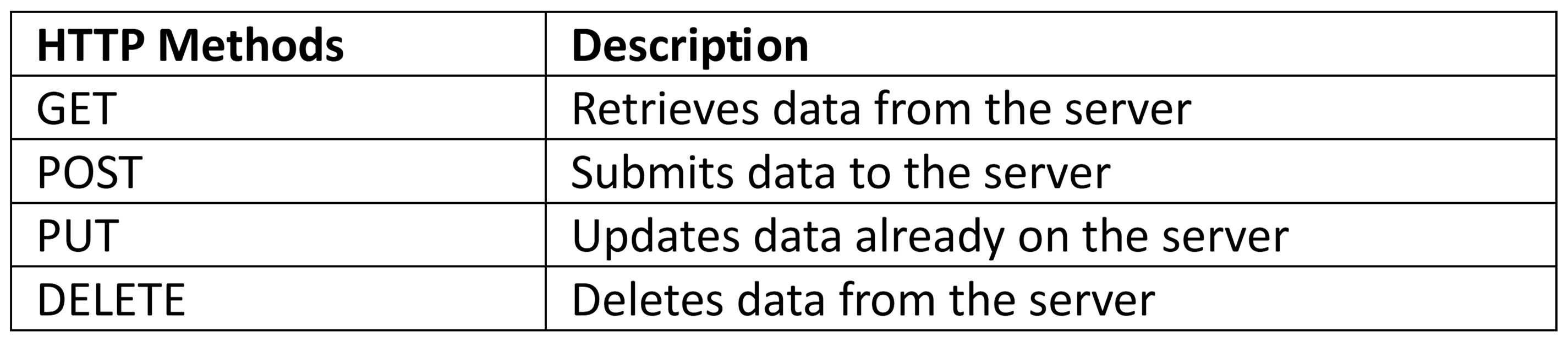
When an HTTP request is made, an HTTP method is sent, this tells the server what action to perform. A list of several HTTP methods is shown below. We will review more examples later.
Response
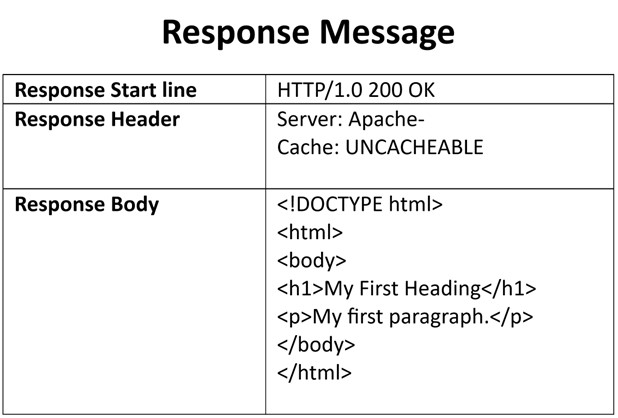
The figure below represents the response; the response start line contains the version number HTTP/1.0, a status code (200) meaning success, followed by a descriptive phrase (OK). The response header contains useful information. Finally, we have the response body containing the requested file, an HTML document. It should be noted that some requests have headers.
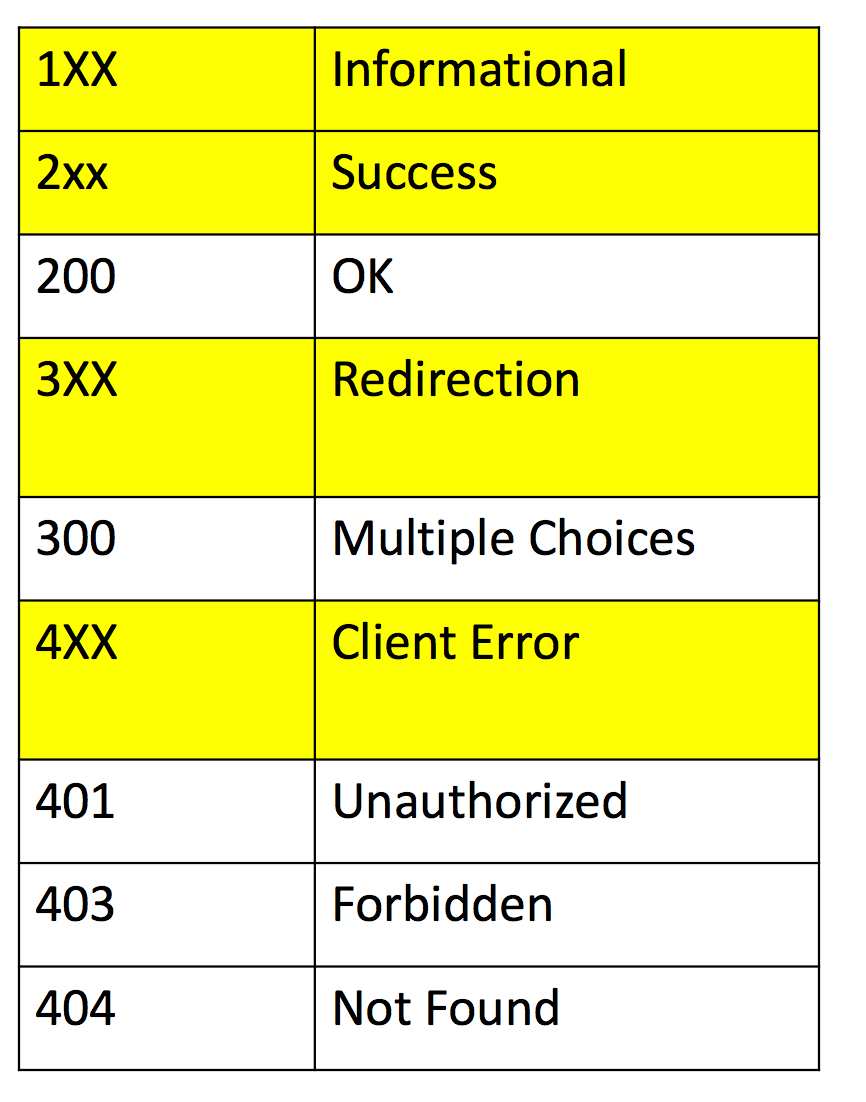
Some status code examples are shown in the table below, the prefix indicates the class. These are shown in yellow, with actual status codes shown in white. Check out the following link for more descriptions.
Install the required libraries
!pip install requests
!pip install pillow
Requirement already satisfied: requests in /opt/conda/lib/python3.12/site-packages (2.32.3)
Requirement already satisfied: charset_normalizer<4,>=2 in /opt/conda/lib/python3.12/site-packages (from requests) (3.4.1)
Requirement already satisfied: idna<4,>=2.5 in /opt/conda/lib/python3.12/site-packages (from requests) (3.10)
Requirement already satisfied: urllib3<3,>=1.21.1 in /opt/conda/lib/python3.12/site-packages (from requests) (2.3.0)
Requirement already satisfied: certifi>=2017.4.17 in /opt/conda/lib/python3.12/site-packages (from requests) (2024.12.14)
Collecting pillow
Downloading pillow-12.1.0-cp312-cp312-manylinux_2_27_x86_64.manylinux_2_28_x86_64.whl.metadata (8.8 kB)
Downloading pillow-12.1.0-cp312-cp312-manylinux_2_27_x86_64.manylinux_2_28_x86_64.whl (7.0 MB)
[2K [90m━━━━━━━━━━━━━━━━━━━━━━━━━━━━━━━━━━━━━━━━[0m [32m7.0/7.0 MB[0m [31m83.0 MB/s[0m eta [36m0:00:00[0m
Installing collected packages: pillow
Successfully installed pillow-12.1.0
Requests in Python
Requests is a Python Library that allows you to send HTTP/1.1 requests easily. We can import the library as follows:
import requests
We will also use the following libraries:
import os
from PIL import Image
from IPython.display import IFrame
You can make a GET request via the method get to www.ibm.com:
url='https://www.ibm.com/'
r=requests.get(url)
We have the response object r, this has information about the request, like the status of the request. You can view the status code using the attribute status_code.
r.status_code
200
You can view the request headers:
print(r.request.headers)
{'User-Agent': 'python-requests/2.32.3', 'Accept-Encoding': 'gzip, deflate, br, zstd', 'Accept': '*/*', 'Connection': 'keep-alive', 'Cookie': '_abck=4F9FB48B8474627E1E28B6F58EF19769~-1~YAAQqonMF8V9UMSbAQAAsfJc2g8BKePg/eaef8MnXbEBTVisU7OyRvwvBOjzsPJFHeJ5TcVyEgvnXzdOqvZvM+sMCtCmZB0Fjk+ugN19G2/DwcSGSi+cIxY2iBnqOu2wS1jpOr1Z2jazhdvH973+Ha42zcEKh13bqzGjHN4+mdxcAIcm8VfZfdAECHqfsuO4UYI/NSL/zIvWvEganSr0QOy5nxOmv1RxJnx2AWp3Uo+9zwkoHziMZlGF/cVk4Tsqk8cWk6x2KNOa/+DS/in2as7+QKvTgOC8kzVkI6q+gF+KFpI6OKOEwn9AWew3YCAdXdntgWesnh9xIAzL+BKq6u9pLl46zCPrjX8GfxYpknKsDn+1NhCg1nP6E0Hg5B+q+nJ00q3MGQZx6q1C0wH4etUr6EvaGoQKTFBsywXW3FeUPwlV15vJcvzKPw17WienFfo=~-1~-1~-1~-1~-1; bm_sz=0065A8D8ED508238F3858AC131F64375~YAAQqonMF8Z9UMSbAQAAsfJc2h7PmAf9VwCT7Ukn5a+yEMh0SEz2sb1x6uOVx2d8yBthbP/eUSNGq76iiPn78zJOxbjGFmTegnUgYW0F8OK5DKn/ZyhCdYtR0fACoYJbjjMfj112qI6GoF3r5sUtR5TCsbz9yzOFfAet2BFifI1Rr4LqxxBOvx4U+v2Apdw3dAUz0aZvmY97xOybting8u2/k0KMhu9ljBMoOA4v9LtHSKUka7z7LZ8s+AuDUhO66CcHjZsx1wYJfLDxRqqZ+G48nBbZX/ytchCoFcBGrNMIhv/i9Cjj88f5ypgdWpacdUZUXbBj0xjIa92Lyh8yy1m4/AiV5UaaYzc=~3490361~3687225'}
You can view the request body, in the following line, as there is nobody for a get request we get None:
print("request body:", r.request.body)
request body: None
You can view the HTTP response header using the attribute headers. This returns a python dictionary of HTTP response headers.
header=r.headers
print(r.headers)
{'Content-Security-Policy': 'upgrade-insecure-requests', 'x-frame-options': 'SAMEORIGIN', 'Last-Modified': 'Tue, 20 Jan 2026 07:35:10 GMT', 'ETag': '"2df8f-648ccd8ef5508-gzip"', 'Accept-Ranges': 'bytes', 'Content-Type': 'text/html;charset=utf-8', 'X-Content-Type-Options': 'nosniff', 'Cache-Control': 'max-age=600', 'Expires': 'Tue, 20 Jan 2026 07:54:43 GMT', 'X-Akamai-Transformed': '0 - 0 -', 'Content-Encoding': 'gzip', 'Date': 'Tue, 20 Jan 2026 07:44:43 GMT', 'Content-Length': '37502', 'Connection': 'keep-alive', 'Vary': 'Accept-Encoding', 'Strict-Transport-Security': 'max-age=31536000'}
You can obtain the date the request was sent using the key Date.
header['date']
'Tue, 20 Jan 2026 07:44:43 GMT'
Content-Type indicates the type of data:
header['Content-Type']
'text/html;charset=utf-8'
You can also check the encoding:
r.encoding
'utf-8'
As the Content-Type is text/html you can use the attribute text to display the HTML in the body. You can review the first 100 characters:
r.text[0:100]
' \n<!DOCTYPE HTML>\n\n<html lang="en">\n<head>\r\n \r\n \r\n \r\n \r\n \r\n \r\n \r\n \r\n \r\n'
You can load other types of data for non-text requests, like images. Consider the URL of the following image:
# Use single quotation marks for defining string
url='https://cf-courses-data.s3.us.cloud-object-storage.appdomain.cloud/IBMDeveloperSkillsNetwork-PY0101EN-SkillsNetwork/IDSNlogo.png'
You can make a get request:
r=requests.get(url)
You can look at the response header:
print(r.headers)
{'Date': 'Tue, 20 Jan 2026 07:51:47 GMT', 'X-Clv-Request-Id': '438aa4cd-ea9b-40bf-9dbf-f815b967fb92', 'Server': 'Cleversafe', 'X-Clv-S3-Version': '2.5', 'Accept-Ranges': 'bytes', 'x-amz-request-id': '438aa4cd-ea9b-40bf-9dbf-f815b967fb92', 'ETag': '"8bb44578fff8fdcc3d2972be9ece0164"', 'Content-Type': 'image/png', 'Last-Modified': 'Wed, 16 Nov 2022 03:32:41 GMT', 'Content-Length': '78776'}
You can see the 'Content-Type'
r.headers['Content-Type']
'image/png'
An image is a response object that contains the image as a bytes-like object. As a result, we must save it using a file object. First, you specify the file path and name
path=os.path.join(os.getcwd(),'image.png')
You save the file, in order to access the body of the response we use the attribute content then save it using the open function and write method:
with open(path,'wb') as f:
    f.write(r.content)
You can view the image:
Image.open(path)

Question: Download a file
Consider the following URL:
URL = <https://cf-courses-data.s3.us.cloud-object-storage.appdomain.cloud/IBMDeveloperSkillsNetwork-PY0101EN-SkillsNetwork/labs/Module%205/data/Example1.txt
Write the commands to download the txt file in the given link.
## Write your code here
url = 'https://cf-courses-data.s3.us.cloud-object-storage.appdomain.cloud/IBMDeveloperSkillsNetwork-PY0101EN-SkillsNetwork/labs/Module%205/data/Example1.txt'
r = requests.get(url)
path = os.path.join(os.getcwd(),'text.txt')
print(path)
with open(path,'wb') as f:
    f.write(r.content)
with open('text.txt','rt') as f:
    for line in f:
        print(line.strip())
This is line 1
This is line 2
This is line 3
/resources/DA0321EN/labs/v2/Module 5/text.txt
Get Request with URL Parameters
You can use the GET method to modify the results of your query, for example, retrieving data from an API. We send a GET request to the server. As before, we have the Base URL, in the Route we append /get, this indicates we would like to preform a GET request. This is demonstrated in the following table:
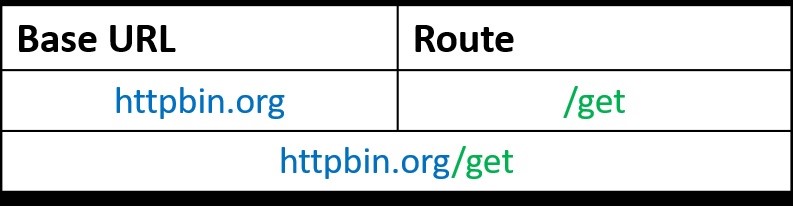
The Base URL is for http://httpbin.org/. It is a simple HTTP Request and Response service. The URL in Python is given by:
url_get='http://httpbin.org/get'
A query string is a part of a uniform resource locator (URL), it sends other information to the web server. The start of the query is a ?, followed by a series of parameter and value pairs, as shown in the table below. The first parameter name is name and the value is Joseph. The second parameter name is ID and the Value is 123. Each pair, parameter, and value is separated by an equals sign, =.
The series of pairs is separated by the ampersand &.
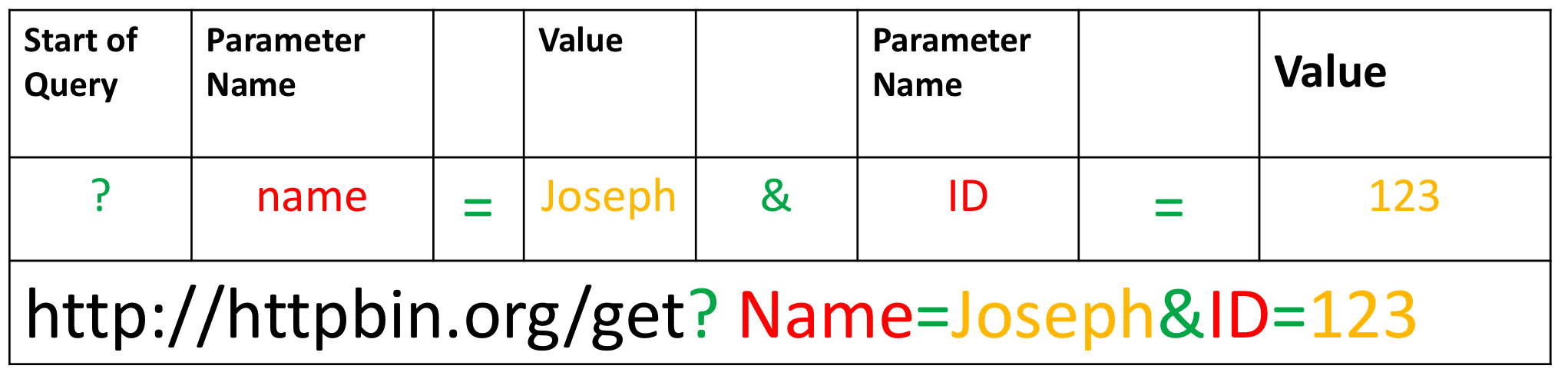
To create a Query string, add a dictionary. The keys are the parameter names and the values are the value of the Query string.
payload={"name":"Joseph","ID":"123"}
Then passing the dictionary payload to the params parameter of the get() function:
r=requests.get(url_get,params=payload)
You can print out the URL and see the name and values.
r.url
'http://httpbin.org/get?name=Joseph&ID=123'
There is no request body.
print("request body:", r.request.body)
request body: None
You can print out the status code.
print(r.status_code)
200
You can view the response as text:
print(r.text)
{
  "args": {
    "ID": "123",
    "name": "Joseph"
  },
  "headers": {
    "Accept": "*/*",
    "Accept-Encoding": "gzip, deflate, br, zstd",
    "Host": "httpbin.org",
    "User-Agent": "python-requests/2.32.3",
    "X-Amzn-Trace-Id": "Root=1-696f38d0-5b0f7aa454b898590bc48033"
  },
  "origin": "52.117.120.36",
  "url": "http://httpbin.org/get?name=Joseph&ID=123"
}
You can look at the 'Content-Type'.
r.headers['Content-Type']
'application/json'
As the content 'Content-Type' is in the JSON format, you can use the method json(), it returns a Python dict:
r.json()
{'args': {'ID': '123', 'name': 'Joseph'},
 'headers': {'Accept': '*/*',
  'Accept-Encoding': 'gzip, deflate, br, zstd',
  'Host': 'httpbin.org',
  'User-Agent': 'python-requests/2.32.3',
  'X-Amzn-Trace-Id': 'Root=1-696f38d0-5b0f7aa454b898590bc48033'},
 'origin': '52.117.120.36',
 'url': 'http://httpbin.org/get?name=Joseph&ID=123'}
The key args has the name and values:
r.json()['args']
{'ID': '123', 'name': 'Joseph'}
Post Requests
Like a GET request, a POST is used to send data to a server, but the POST request sends the data in a request body. In order to send the Post Request in Python, in the URL you can change the route to POST:
url_post='http://httpbin.org/post'
This endpoint will expect data as a file or as a form. A form is convenient way to configure an HTTP request to send data to a server.
To make a POST request we use the post() function, the variable payload is passed to the parameter data :
try:
    response = requests.post(url_post, data=payload)
    if response.status_code == 200:
        print("Response JSON:", response.json())
    else:
        print(f"HTTP Error: {response.status_code} - {response.reason}")
except requests.exceptions.RequestException as e:
    print(f"An error occurred: {e}")
Response JSON: {'args': {}, 'data': '', 'files': {}, 'form': {'ID': '123', 'name': 'Joseph'}, 'headers': {'Accept': '*/*', 'Accept-Encoding': 'gzip, deflate, br, zstd', 'Content-Length': '18', 'Content-Type': 'application/x-www-form-urlencoded', 'Host': 'httpbin.org', 'User-Agent': 'python-requests/2.32.3', 'X-Amzn-Trace-Id': 'Root=1-696f39c4-0e1c48a2077e7a9171f6350d'}, 'json': None, 'origin': '52.117.120.36', 'url': 'http://httpbin.org/post'}
Comparing the URL from the response object of the GET and POST request you see the POST request has no name or value pairs.
print("POST request URL:",response.url )
print("GET request URL:",r.url)
POST request URL: http://httpbin.org/post
GET request URL: http://httpbin.org/get?name=Joseph&ID=123
You can compare the POST and GET request body, you see only the POST request has a body:
print("POST request body:",response.request.body)
print("GET request body:",r.request.body)
POST request body: name=Joseph&ID=123
GET request body: None
You can view the form as well:
response.json()['form']
{'ID': '123', 'name': 'Joseph'}
There is a lot more you can do. Check out Requests for more.
Congratulations, you have completed your hands-on lab on Review Of Accessing APIs.